Tab recording vs full screen capture
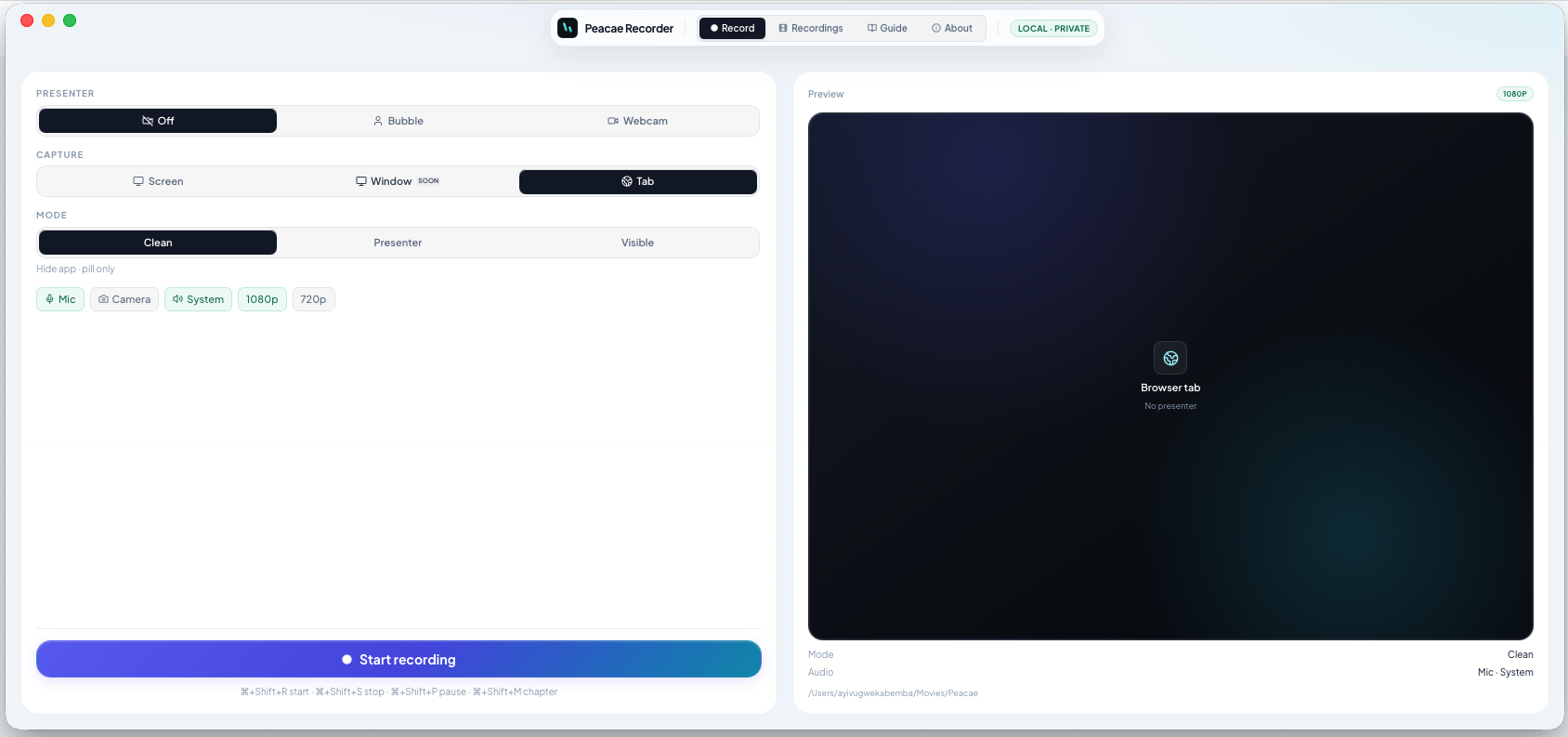
The wrong capture source is the fastest way to include notifications, personal bookmarks, or the recorder UI in frame. Pick the source that matches the story you are telling.
Record a browser tab
Tab capture isolates one browser window — ideal for web app demos, docs, or a single dashboard. System audio can often be captured with the tab when supported.
Record the full screen
Screen capture shows everything on a display — best for multi-app workflows, OS features, or desktop software outside the browser. On web, choose Screen from the setup panel.
Desktop modes
The Mac and Windows app adds Clean, Presenter, and Visible modes on top of your capture choice so you can hide the setup UI or show a bubble preview before you start.
Screenshots
1 screenshot — opens in a gallery dialog
Related Articles
How to record your screen privately in the browser
A quick walkthrough of the web recorder setup: sources, audio, quality, and what stays on your device.
Presenter bubble styles and shapes explained
Style your on-screen presenter bubble before you record — position, preview, theme, and shape.
Switch screen and camera mid-recording
Change views during a recording with a smooth transition instead of starting a new file.