How to record your screen privately in the browser
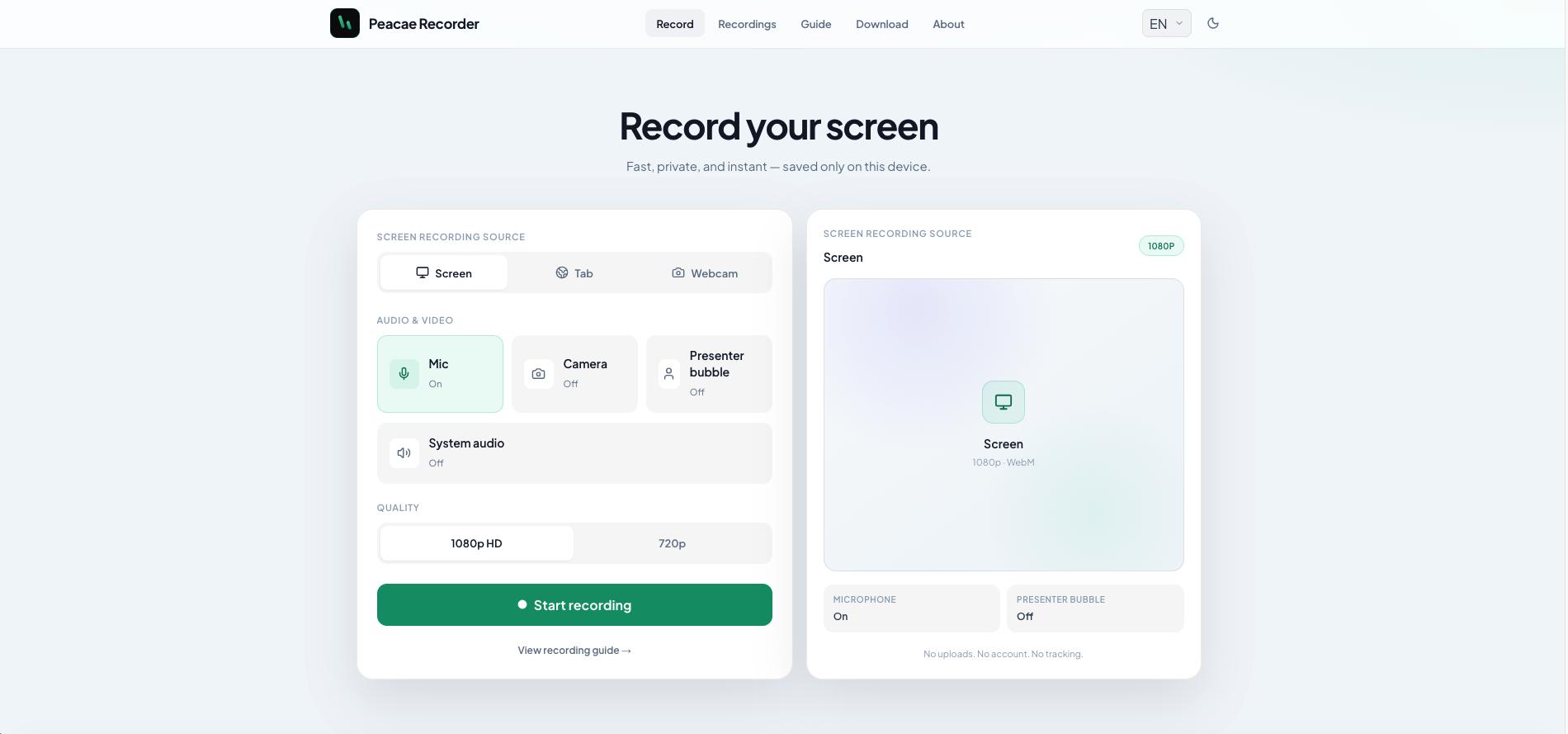
If you want to capture a demo, tutorial, or meeting without sending video to the cloud, a browser-based recorder that saves locally is the fastest path. OhRec runs entirely in your tab — choose a source, check audio, and hit record.
Pick your capture source
Start on the home page and choose Screen, Tab, or Webcam. Screen is best for full-desktop walkthroughs. Tab isolates a single browser window — useful when you do not want notifications in frame. Webcam records you directly when you are on camera.
Enable the audio you need
Turn on Microphone for voiceover, Camera when you want a full-frame webcam shot, Presenter bubble for a corner overlay, or System audio when the browser supports tab/window sound. The preview panel mirrors what will be recorded.
Quality and privacy by default
1080p gives the sharpest WebM export; 720p keeps files smaller. Recordings stay in this browser on this device until you download or delete them — no account, no tracking, no upload step.
- •Open the recorder and choose screen, tab, or webcam.
- •Enable mic, camera, bubble, or system audio as needed.
- •Select 1080p or 720p, then start recording.
- •Find finished files in your on-device library or download them.
Screenshots
1 screenshot — opens in a gallery dialog
Related Articles
Presenter bubble styles and shapes explained
Style your on-screen presenter bubble before you record — position, preview, theme, and shape.
Switch screen and camera mid-recording
Change views during a recording with a smooth transition instead of starting a new file.
Your recordings library stays on this device
Why local storage matters and how to manage recordings on web and desktop.